
Android apps on Borshevik
Borshevik now runs Android apps — in windows of their own, next to your desktop apps. Google's services and Google Play work: apps install from there and keep themselves up to date.
How to turn it on
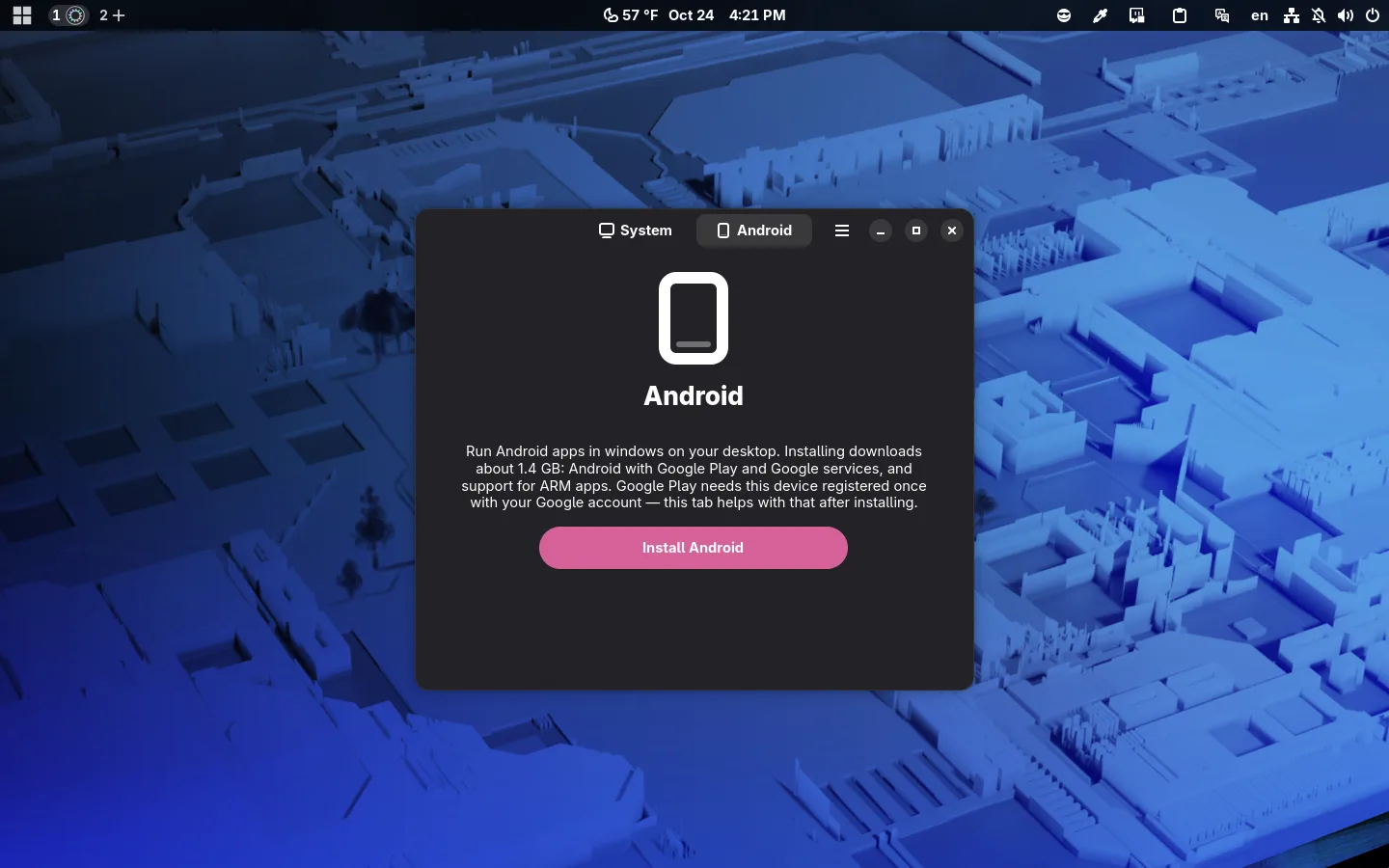
Android is not part of the default setup; you install it when you want it:
- by checking Android applications support in the App Manager;
- or with Install Android on the Android tab of the Image Manager.
It downloads about 1.4 GB: Android with Google Play and Google's services. Most apps on Google Play are built only for the ARM processors of phones, so an ARM translator goes in too, picked for your processor: Intel's own on Intel, Google's on AMD. On NVIDIA graphics, Android draws in software and runs slower.
Registering with Google Play
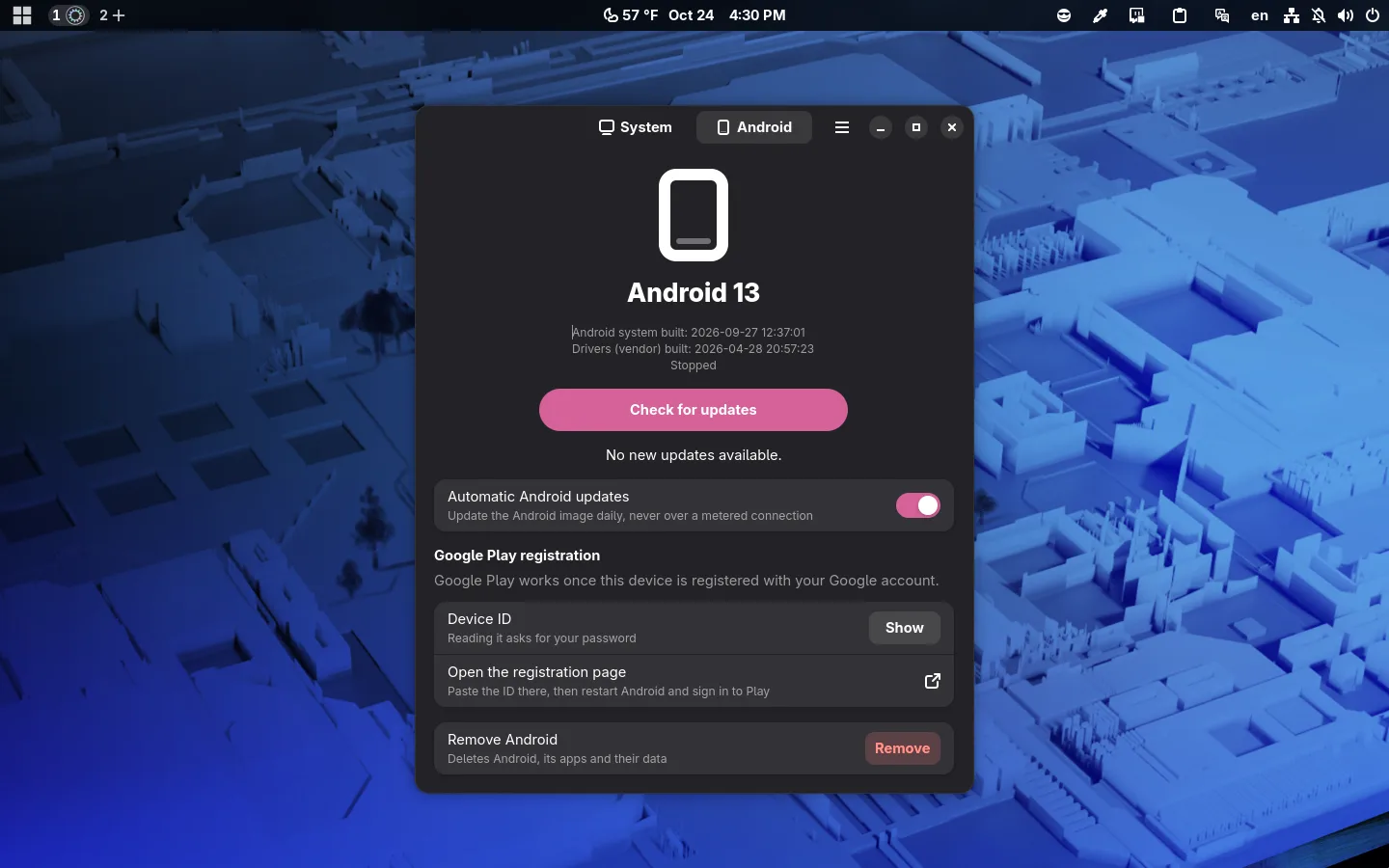
Google asks for the device to be registered with your account once. The Android tab shows the device ID and has a button that opens the registration page: paste the ID there and sign in to Google Play.
Installing APKs
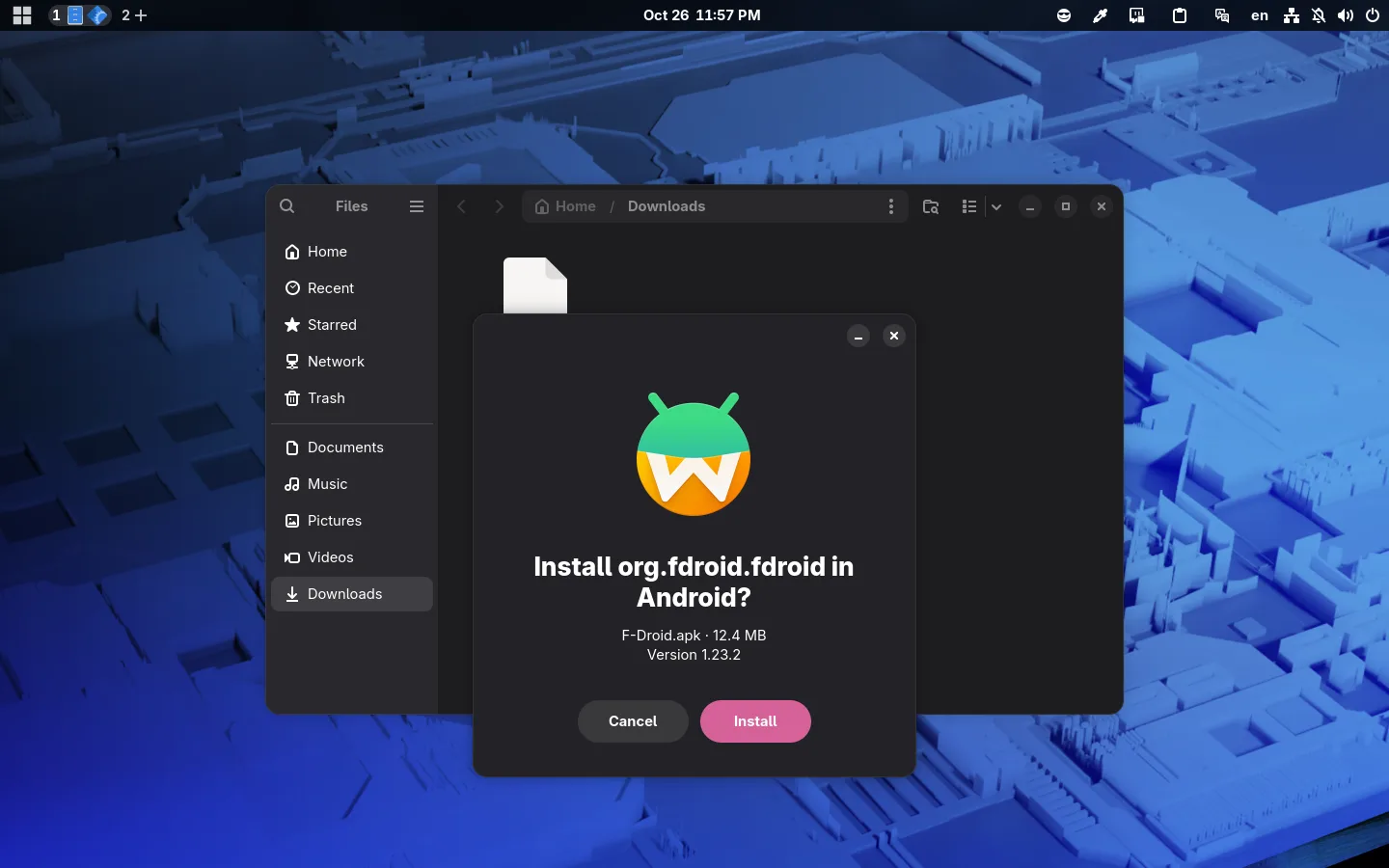
An APK downloaded from somewhere other than Google Play installs with a double click: the installer shows the package and its version and offers to install it — or to update it, if it is already installed.
Feels like part of the system
Android follows GNOME's dark style and accent colour:
Updates
Android updates separately from the system, once a day, and waits while you're on a phone's hotspot or another metered connection.