
Borshevik
Deep roots, fresh growth
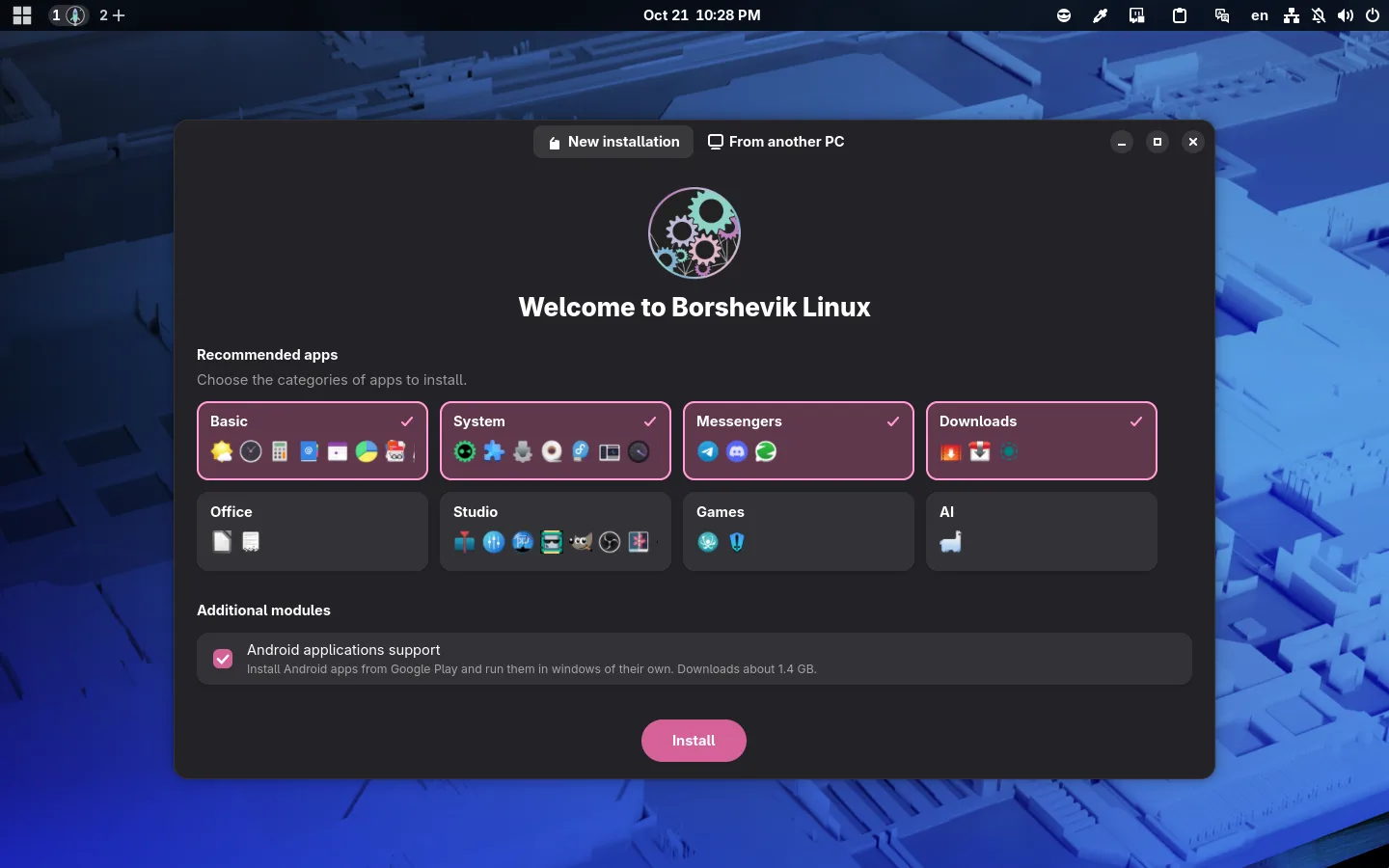
Meet Borshevik
Borshevik is Linux that is ready to work the moment it is installed, even if you have never used Linux before.
The desktop is GNOME with extensions of our own: hybrid auto-tiling puts every window in its place, any selected text translates right on screen, and app search works in any keyboard layout — plus plenty of other useful touches.
Out of the box: Chrome, Steam, codecs and a VPN that gets around blocking, and Android apps from Google Play if you want them. Updates can't break the system: one click takes you back to the previous version.
A system that doesn't break
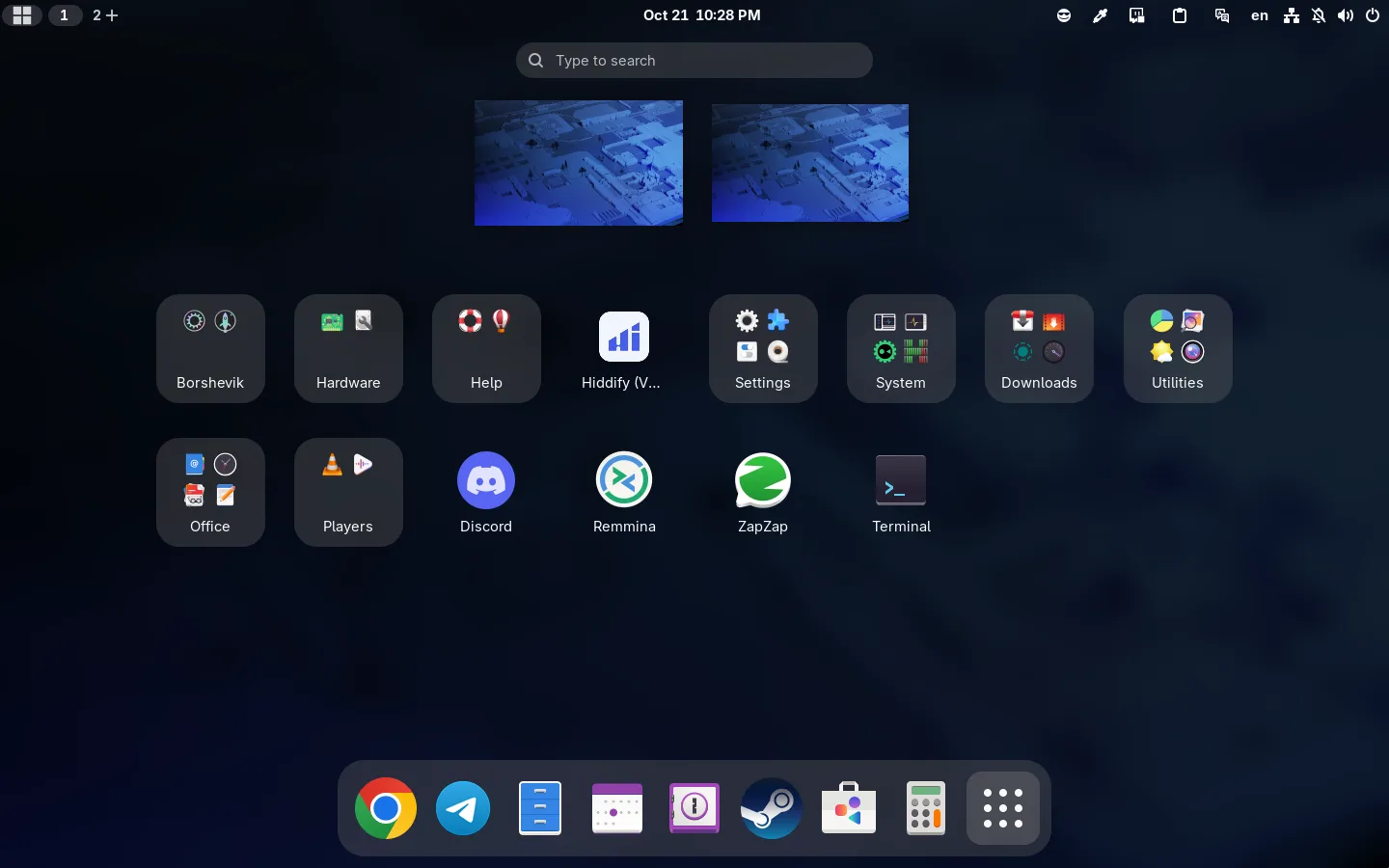
Ready for everyday work
On the first login, the App Manager offers a recommended set of apps grouped by use — work, media, development, communication and more — so you get a solid starter pack without hunting for apps one by one.
Chrome is already there, from Google's official package, running natively on Wayland with smooth touchpad gestures, and common multimedia codecs are included, so video and audio work right after installation. There is also a separate image for NVIDIA graphics with the proprietary driver preinstalled.
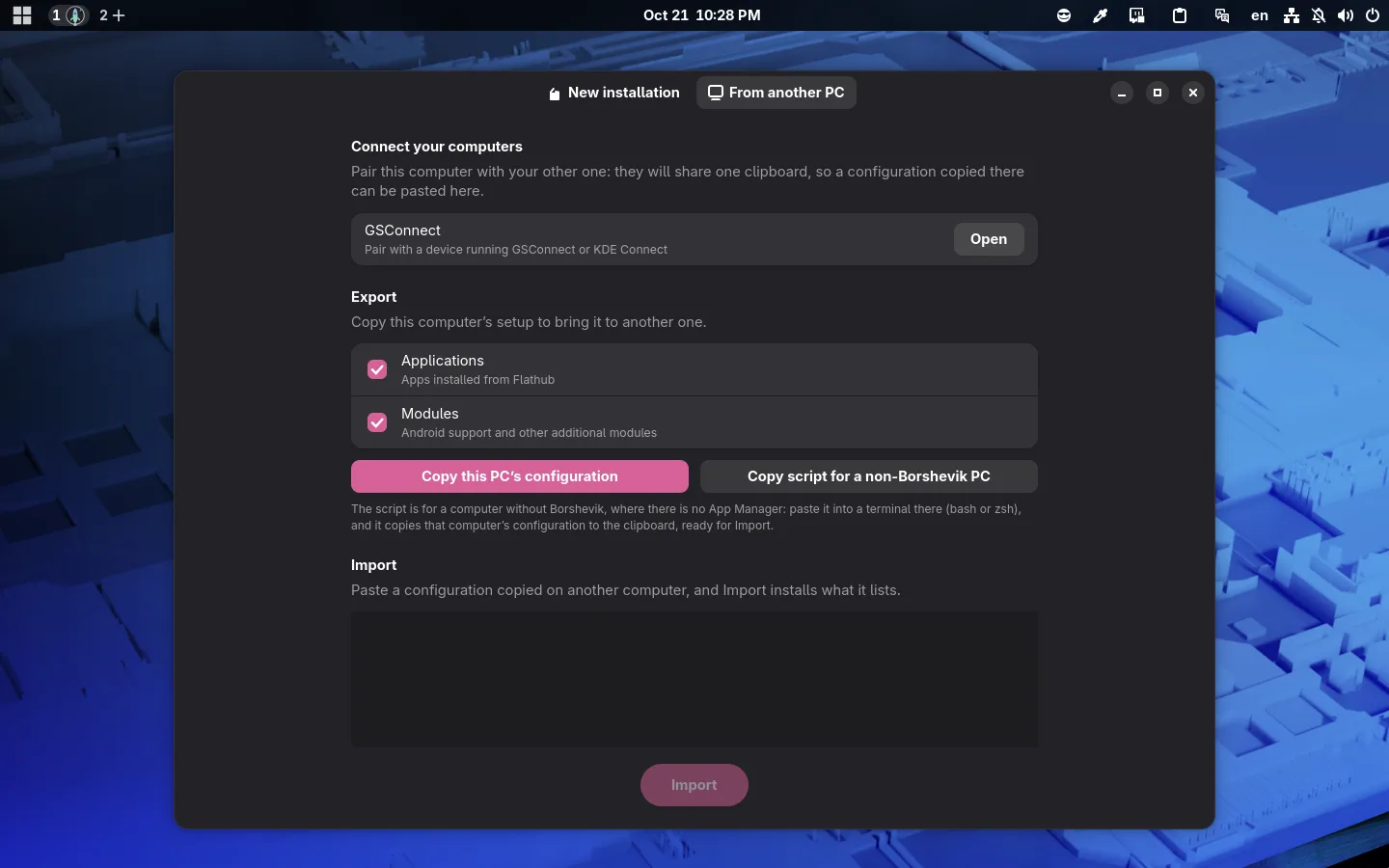
Moving from another computer
The App Manager's From another PC tab carries your setup over in one go. Copy the configuration on the old machine — with the App Manager if it runs Borshevik, or with a short script it gives you on any other Linux — and paste it here: the same apps and modules get installed.
Pair the two computers with GSConnect and they share one clipboard, so the configuration goes straight from one to the other.
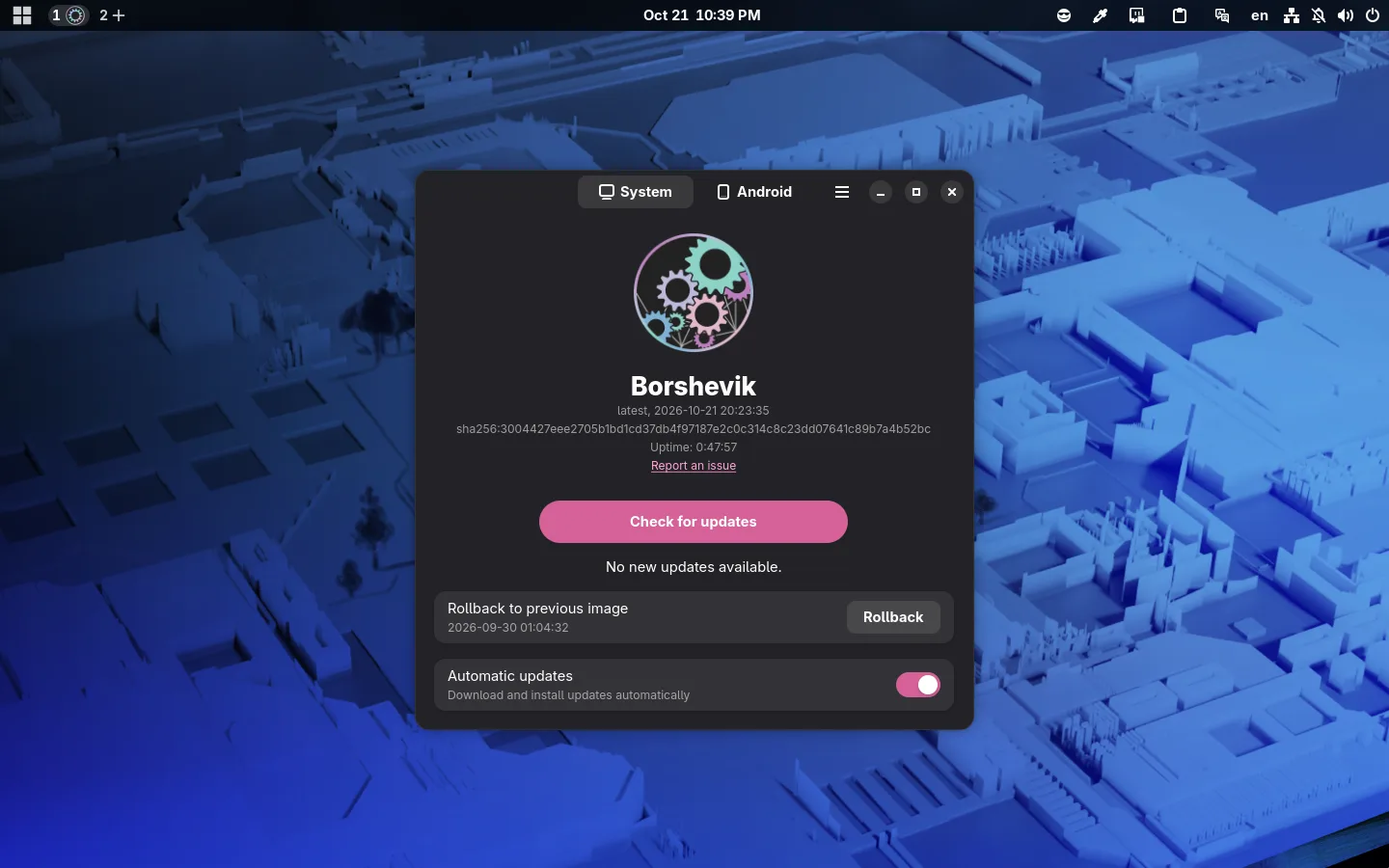
One image, safe updates
Borshevik is built on Fedora Atomic with help from the uBlue ecosystem and is delivered as a single, read-only system image. An update is a whole new image: it downloads in the background and takes effect at the next restart, and if something goes wrong you simply boot back into the previous version.
Updates, rollback and automatic updates are all in one window, the Image Manager. The image is built in the open from its public repository.
Android apps
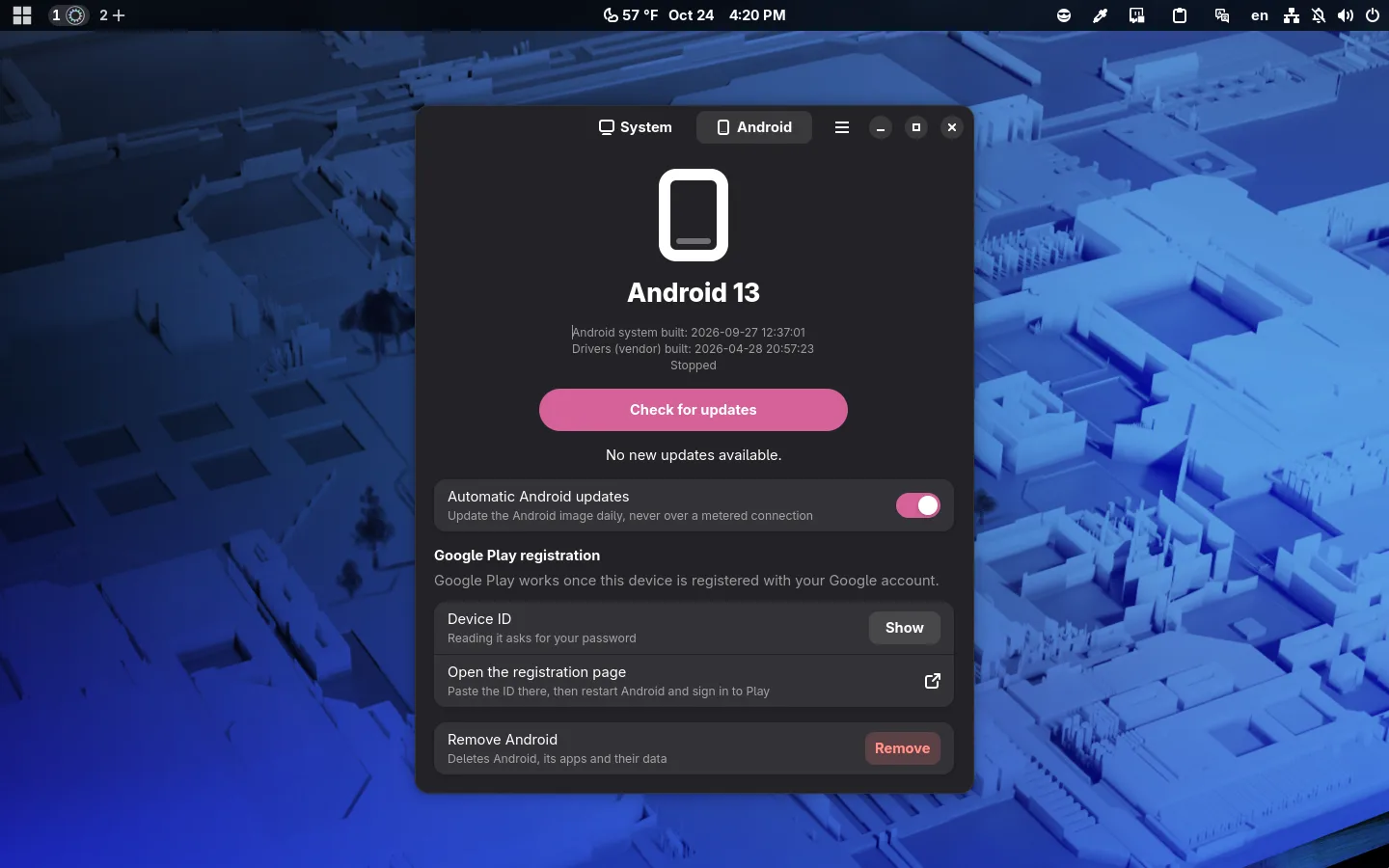
Borshevik runs Android apps in windows of their own, next to your desktop apps. Android support is optional and installed on demand, from the Image Manager or the App Manager. Apps install from Google Play and keep themselves up to date; Google asks for the device to be registered with your account once, and the Image Manager walks you through it.
Games
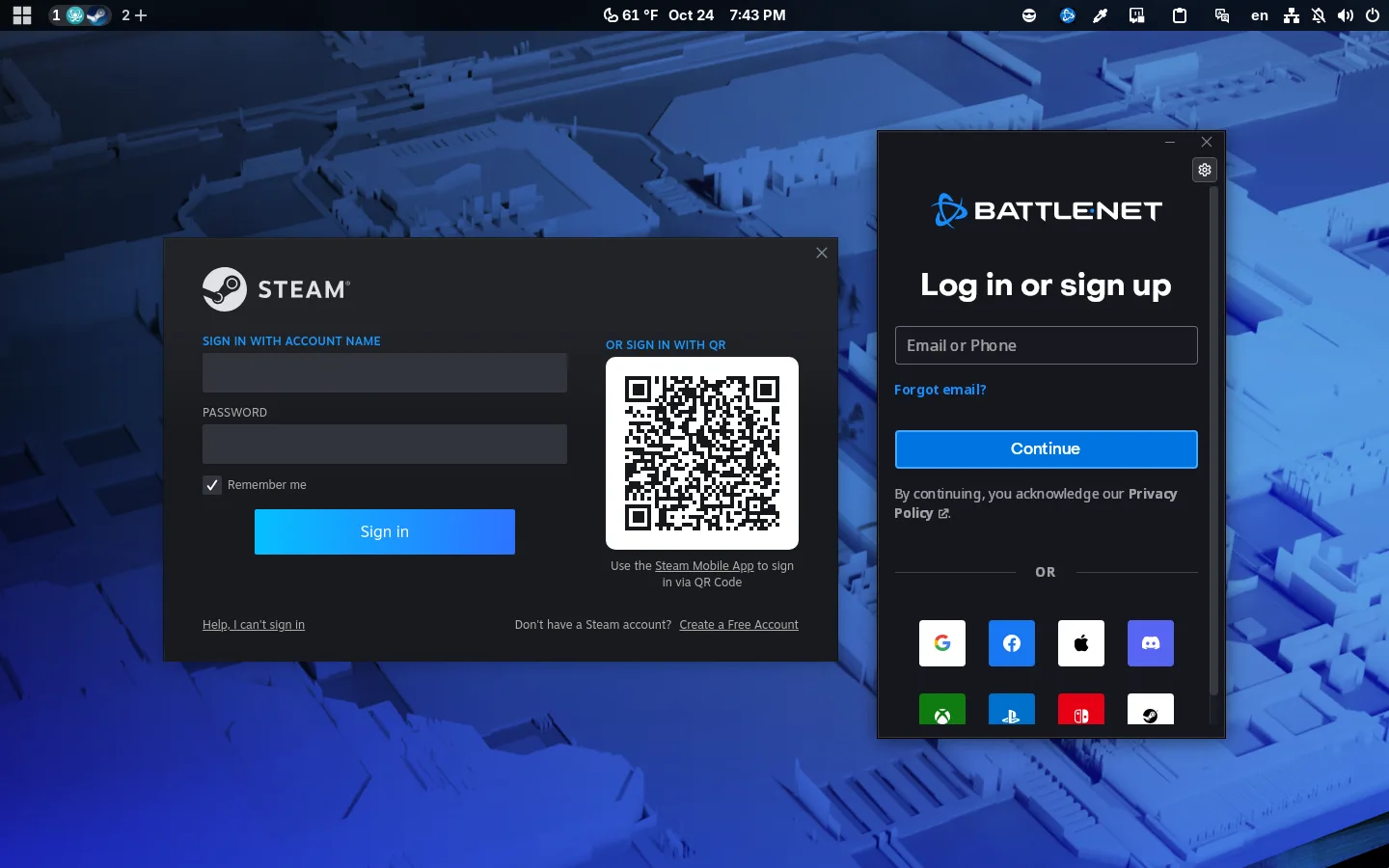
Steam is preinstalled, so you can play right away, and many games work out of the box. Install PortProton via the App Manager to get any other launcher — Battle.net, EA app, Epic Games Store and the rest.
VPN
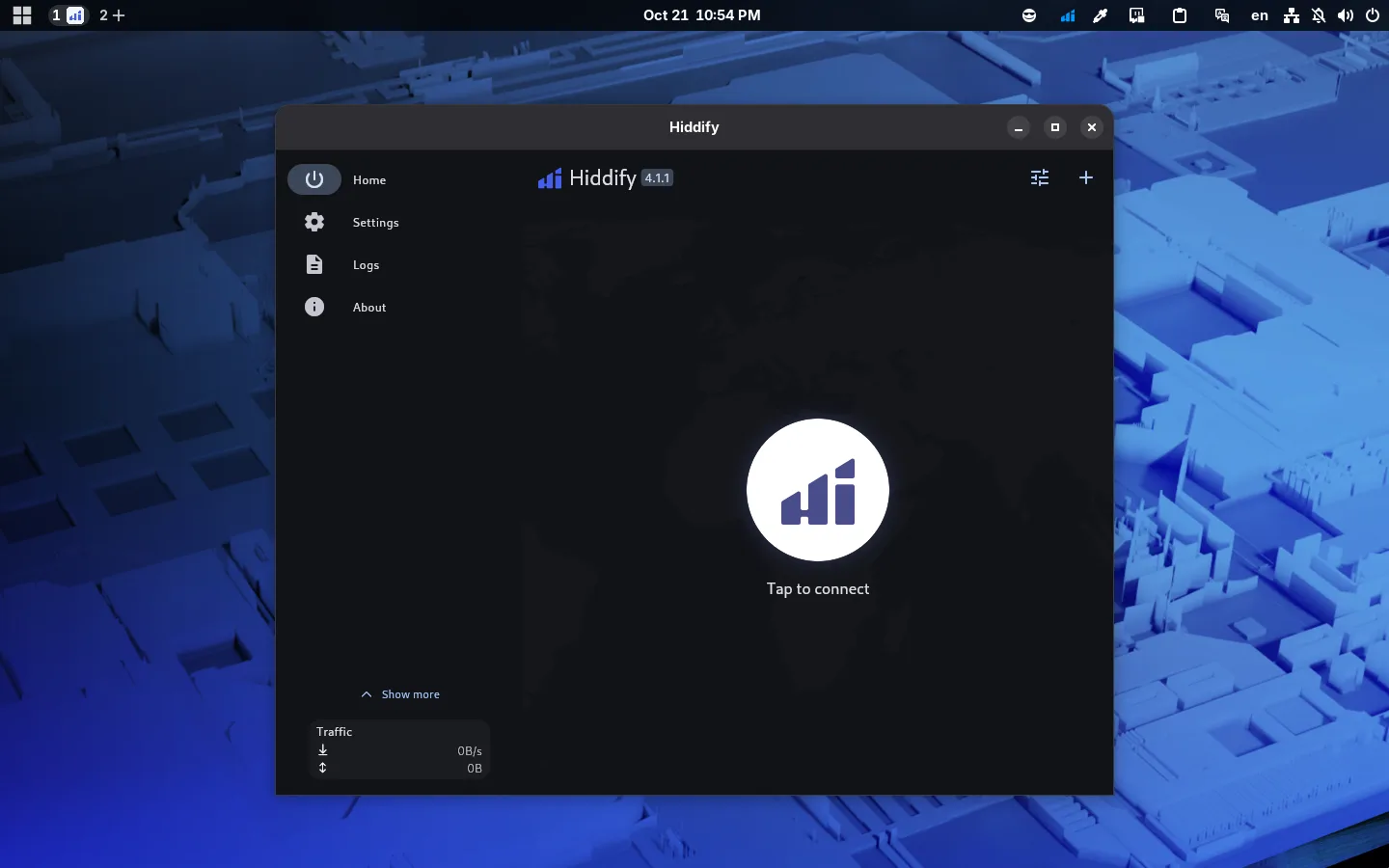
Hiddify comes preinstalled — a desktop VPN client that supports VLESS + Reality and the other modern censorship-resistant protocols: VLESS over TLS, VMess, Hysteria, TUIC, WireGuard and SSH tunnels. Import a share link or a subscription and connect.
GNOME, tuned
Workspaces on the panel
Workspaces become tabs on the top panel. Each tab shows its windows' icons, so you see at a glance what is open where, and you switch with a click or with Super+1, Super+2 and so on. Drag a tab to reorder workspaces, as you would tabs in a browser: its windows move along. Workspaces come and go by themselves: there is always an empty one at the end, the + tab, which opens it in the overview to start something there — or drag the + between two tabs for a new workspace right there. Close the last window on a workspace, and it goes away, taking you back to the one on its left.
Every window in its place
Tiling and ordinary floating windows, side by side, laid out over workspaces by themselves, so no window is ever lost: to reach any of them, just move between workspaces.
- Drag a window to the left or right edge, and it takes that half.
- A maximized window, or one with no room left, gets a workspace of its own instead of covering others.
- A window that ends up hidden behind others moves out to a workspace on the left.
Window rules
Some windows need a place of their own. Press Super+R, pick an open window and give it a rule: show it on every workspace, keep it above the others, open it at a given size and place, and so on. A rule is picked by the window's class or title, and takes effect as soon as it is saved. Borshevik comes with a few — Steam opens on its own workspace, and a picture-in-picture video stays on top in the corner of every workspace.
Translate the selected text
Select text in any app and press Super+T: the translation opens under its icon on the panel — no copying, no browser, no separate app. The languages are taken from your keyboard layouts, so there is nothing to set up.
App search in any keyboard layout
App search finds an app even when its name was typed in the wrong keyboard layout.
Useful extensions out of the box
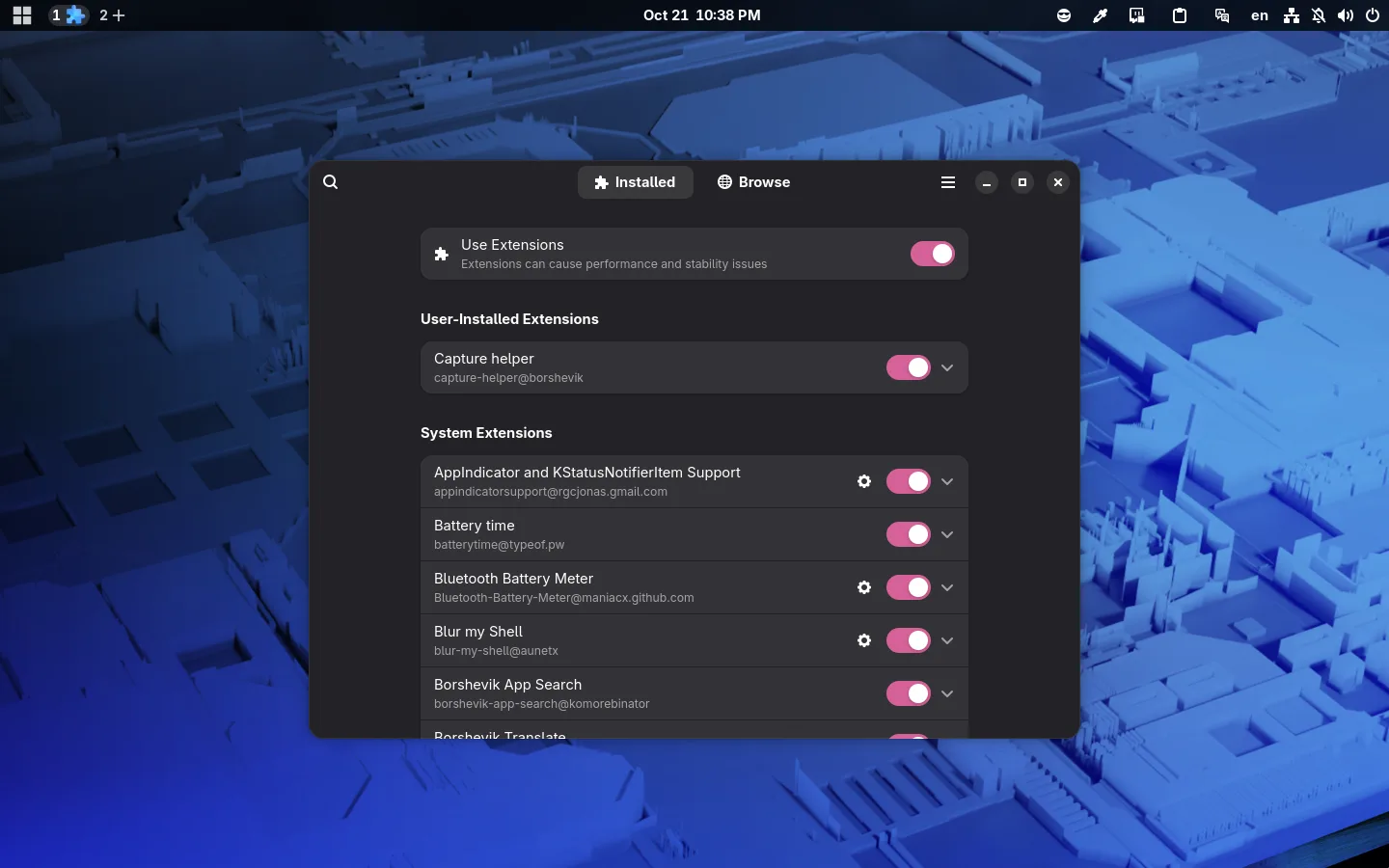
The desktop is the GNOME of Fedora with a small set of proven extensions, already set up:
- clipboard history and an emoji picker;
- GSConnect — your phone's notifications, files and a shared clipboard;
- a colour picker for anywhere on the screen;
- the weather next to the clock, and battery time left;
- the battery of Bluetooth headphones and other devices;
- Caffeine, to keep the screen from turning off.